
Over 20 Years Later, Still Offering Email Marketing for Small Businesses
AWeber really focuses on trying to be the premier email marketing tool for small businesses and entrepreneurs.
Instead of using a third party, AWeber owns all parts of its email delivery system, and it seems to be continually working on updates to try to stay competitive.
It’s been around forever – well, since 1998, which is forever in email marketing terms. But is that a good thing? Email has come a long, long way since 1998, and I don’t know about you, but I certainly don’t want an email marketing service that’s stuck in the past.
Can AWeber keep up with the times, or has it seen better days? That’s what I wanted to find out. I checked how easy it is to use, tested its features and analytics to see if they are up-to-date, and even took customer support for a test drive.
All the Basics a Business Needs
While AWeber was one of the first to introduce autoresponders, it’s not on the cutting edge anymore. However, AWeber is continually adding new features, such as automation, to try to catch up with the competition.
I want to focus on standout features here, so I won’t go into detail on the standard ones like the drag-and-drop email editor, or the ability to import existing email subscribers.
Drag-and-Drop Campaign Builder (with Automation)
On top of broadcast (i.e., one-time) emails, you can also create a series of emails called a “campaign” in AWeber.
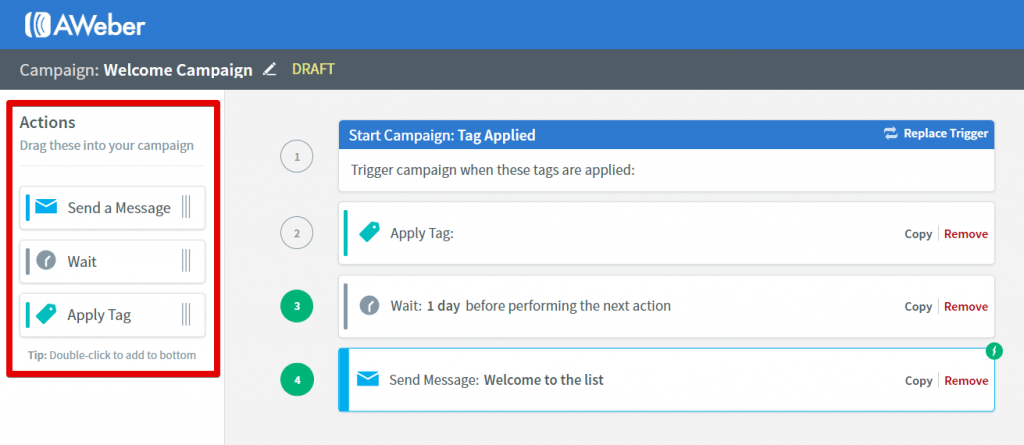
The campaign builder is very simple to use. You just drag in one of the three actions available (send a message, wait, apply tag) from the left panel:
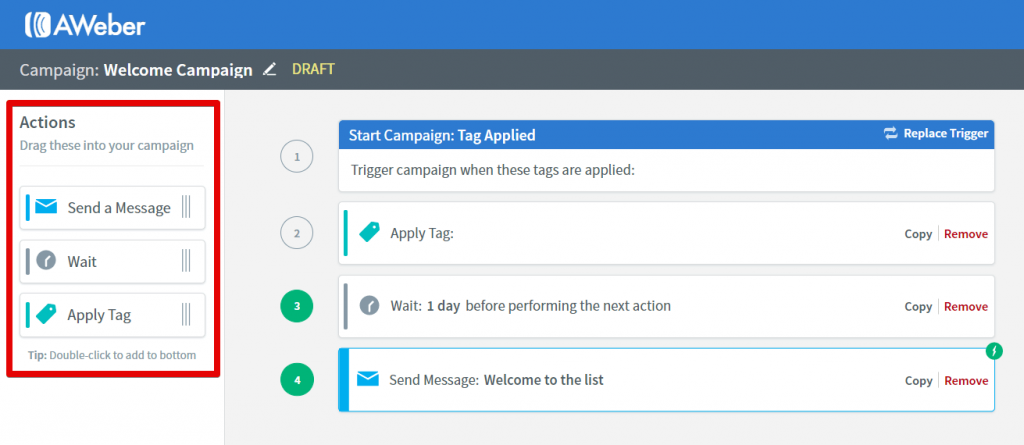
You can create a basic autoresponder by combining message blocks and “wait” blocks. But more importantly, you also get access to a few more advanced options for automation.
When you click on any message that you’ve dropped in, you can choose an email (that you’ve already made) to send. Clicking that email block again will open a panel on the right side with automation options:
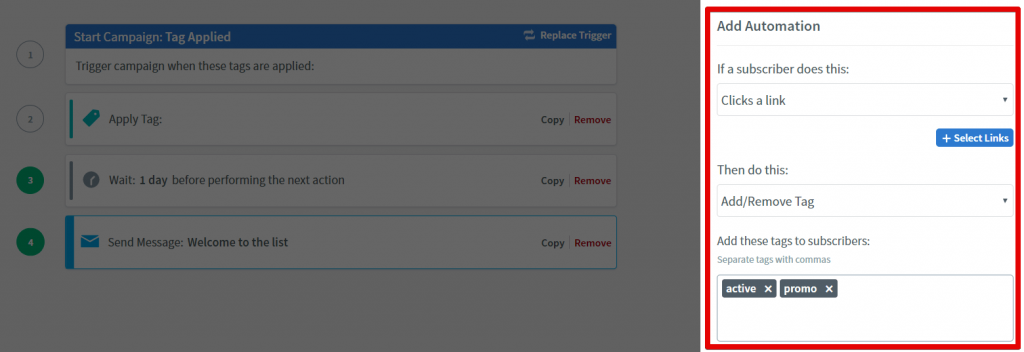
You can choose to add or remove a tag based on whether a subscriber opens an email, or clicks a link in it.
Since campaigns can be triggered by adding a tag to a subscriber, this is how one campaign can trigger another.
While this should be fine for you if you’re a small-business owner, it probably won’t be enough if you’re an advanced email marketer. Other email marketing tools have more triggers to choose from (e.g., visited a URL on your site, didn’t open an email, etc.), as well as conditional blocks (take different actions based on user behavior).
Split-Test Functionality
This is a relatively new feature, and it makes split testing to optimize your results simple.
Under “Messages” on the menu of your dashboard, there’s a clear label for “Split Tests.” Note that this works only for broadcast emails.
It lets you specify which percentage of your subscribers should be sent each email (for up to three emails):
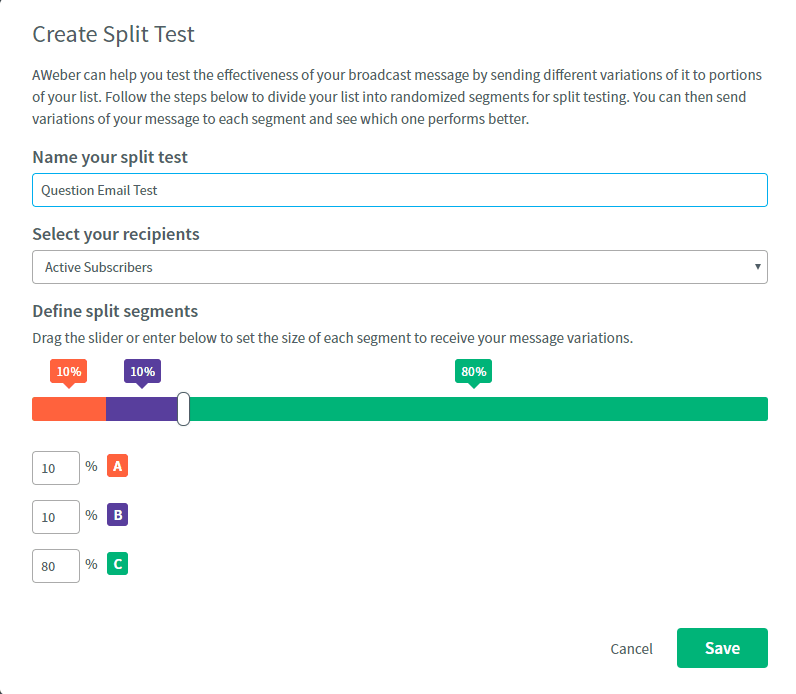
Then, you’ll get to assign email drafts that you’ve created to each segment before scheduling the emails to be sent:
The Split Tests feature is a bit limited compared with other email marketing tools that let you split-test on a small part of your list and then send the winner automatically to the rest of your list.
Still, you can test different approaches and see which ones work best with your audience.
Over 850 Integrations
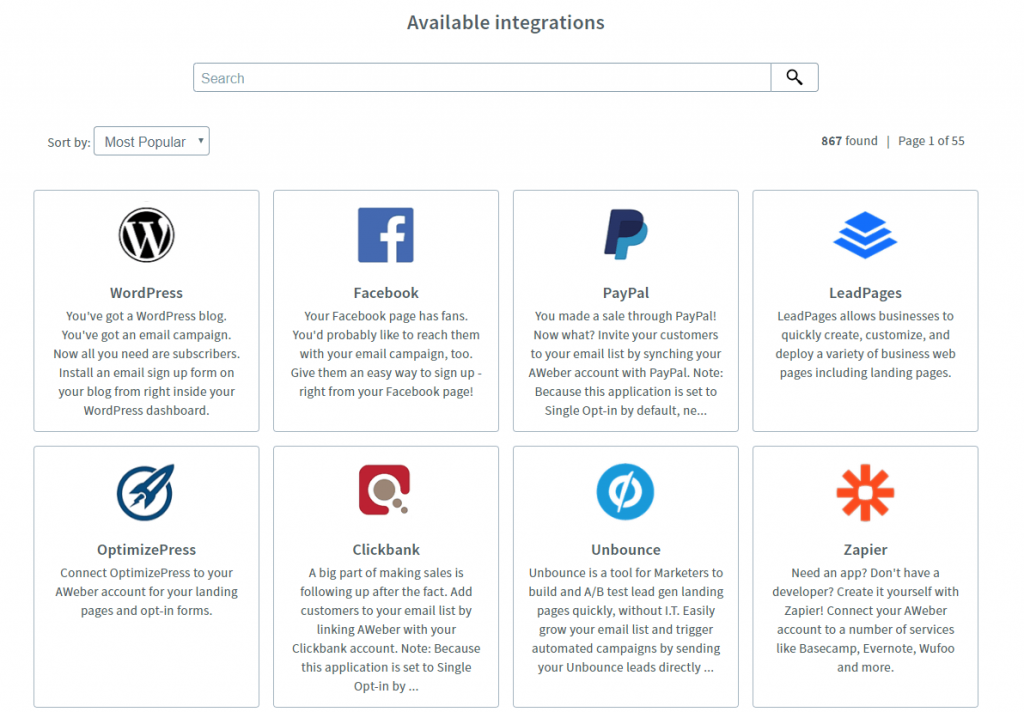
Every time I visit AWeber’s website, the amount of integrations it has available seems to go up. These will let you easily connect AWeber with any other tools you use.
There are currently more than 850 integrations for a huge variety of tools. Here are some of the most popular ones:
E-commerce: PayPal, BigCommerce, WooCommerce, Shopify, Clickbank
Website builders: Wix, Weebly, WordPress, Joomla
SMS: Burst SMS, Callfire SMS, CM Telecom SMS
Social Media: Facebook, Twitter
Highly Customizable Signup Form Builder
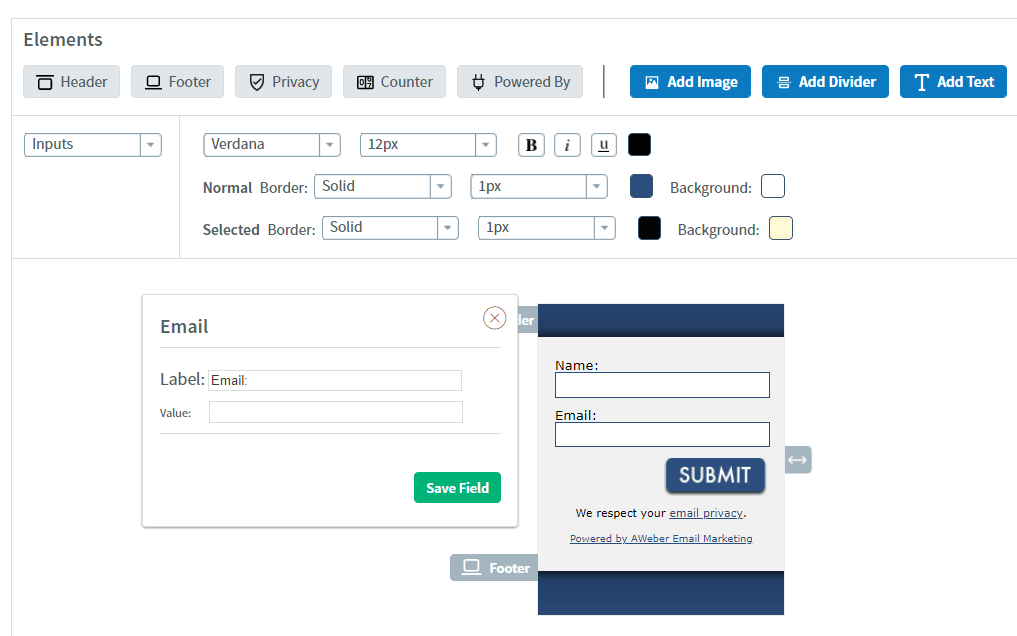
The default AWeber form templates are ugly, and they haven’t really changed in over ten years, to the best of my recollection.
However, the form builder has improved, and it almost gives you full control over what forms look like. So, it will take you a bit of work, but it’s easily possible to create attractive forms to embed on your website.
Note that you can create embeddable forms only. If you want to create other types, like a pop-up form, you’ll need to use an integration with a third-party tool like OptinMonster.
AWeber Mobile Applications
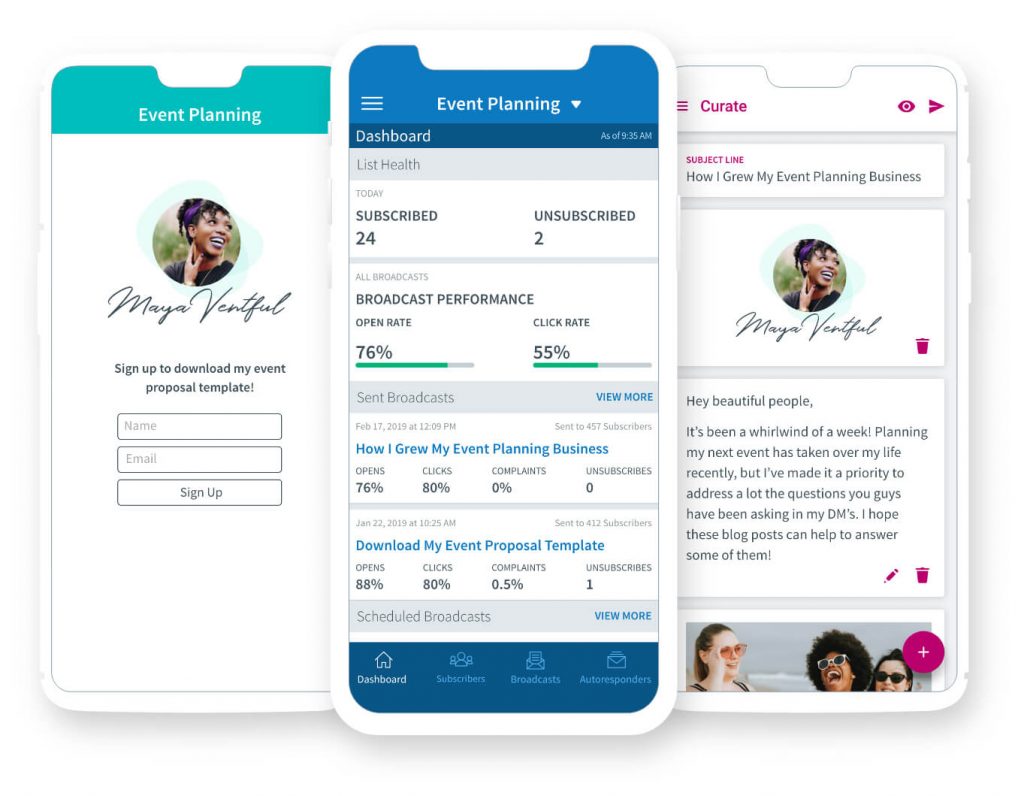
Not too many other email marketing platforms have mobile apps.
AWeber has three, and they’re all available on both Android and iOS.
Each mobile app has a specific purpose:
AWeber Stats lets you see your live email stats.
Atom App lets you add subscribers from your phone in-person (you could put it in a store, or use at an event).
Curate lets you create emails to send out.
It’s kind of annoying to have to download three different AWeber apps if you want all the features, but it’s still a nice option to have.
Full Opt-in Control
It drives me nuts that some other email marketing platforms make subscribers opt in again when you import them. Most also don’t give you a choice of whether to let new subscribers require a single opt-in or a double opt-in.
But AWeber does. You can choose whether or not you’d like to require imported or new subscribers to have to confirm their email addresses.
If you know you have high-quality new subscribers, being able to go to single opt-in can help improve your sign-up conversion rates.
A Fairly Simple Dashboard
AWeber is pretty easy to navigate. There are no hidden settings, and everything you’ll need is along the top two menus.
Forms, subscribers, and reports are all typical labels that are self-explanatory.
But a few parts aren’t intuitive. The “messages” part of your account has everything from broadcast emails, to split tests, to the campaign builder.
While the campaign builder itself is intuitive and easy to use, you may spend some time looking around for it at first.
In addition, you’ll see your “current list” at the top of your account at all times. Each list of contacts you maintain is separate from each other. This can be a good thing, but you could also accidentally forget to switch lists, and then create a form for the wrong list (and have to redo it from scratch).
Tag and Segment Subscribers
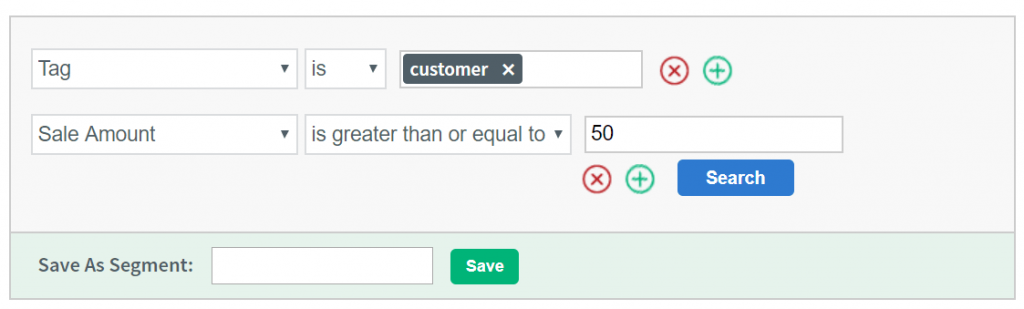
Tags are a crucial part of email marketing on AWeber. You can assign multiple tags to subscribers, either manually or based on activity (e.g., clicked a link in an email). They allow you to target specific emails to them through broadcasts or emails in campaigns.
You can also create advanced segments of subscribers at any time based on tags, sales, behavior, and more. You can then target segments with emails, similar to tags, but with more precision.
Edit and Save Email Templates
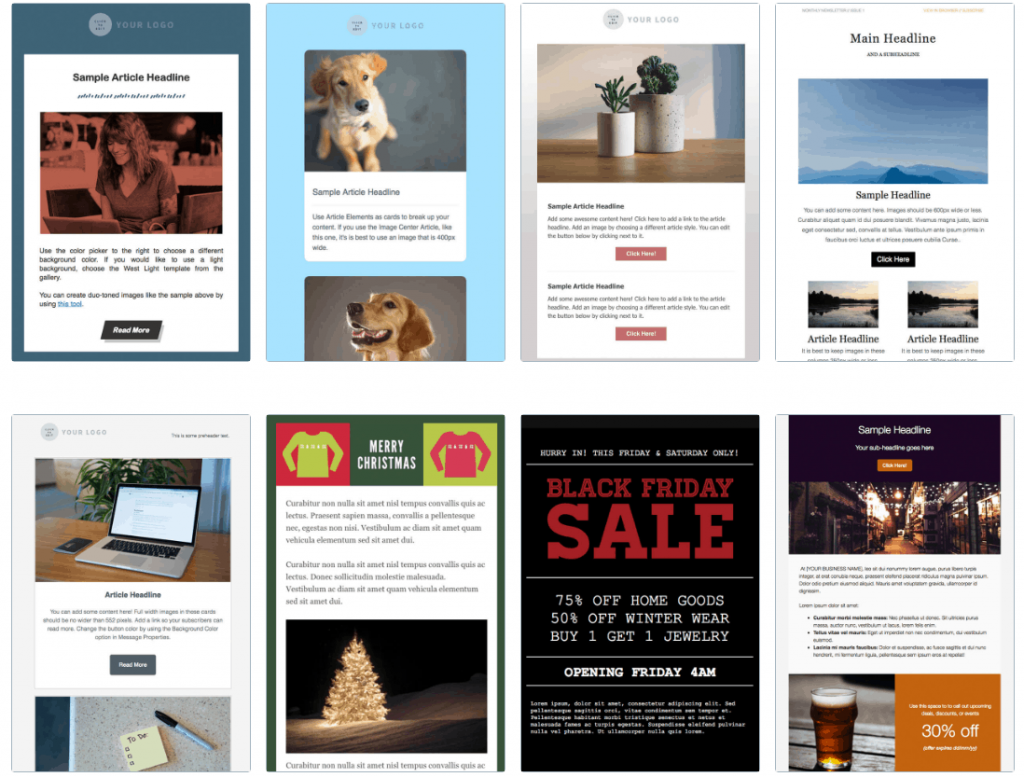
AWeber has hundreds of email templates. A decent portion of them are outdated, but AWeber continues to add new ones, and there’s a good number of attractive templates to pick from.
The real standout feature in terms of making your life easier is being able to quickly save templates. When you’re editing an email in the drag-and-drop email editor, you can save it at any time as a template.
If a lot of your emails are going to look similar, you can make one template initially, and re-use it in the future to save time customizing emails.
Access Free Stock Images
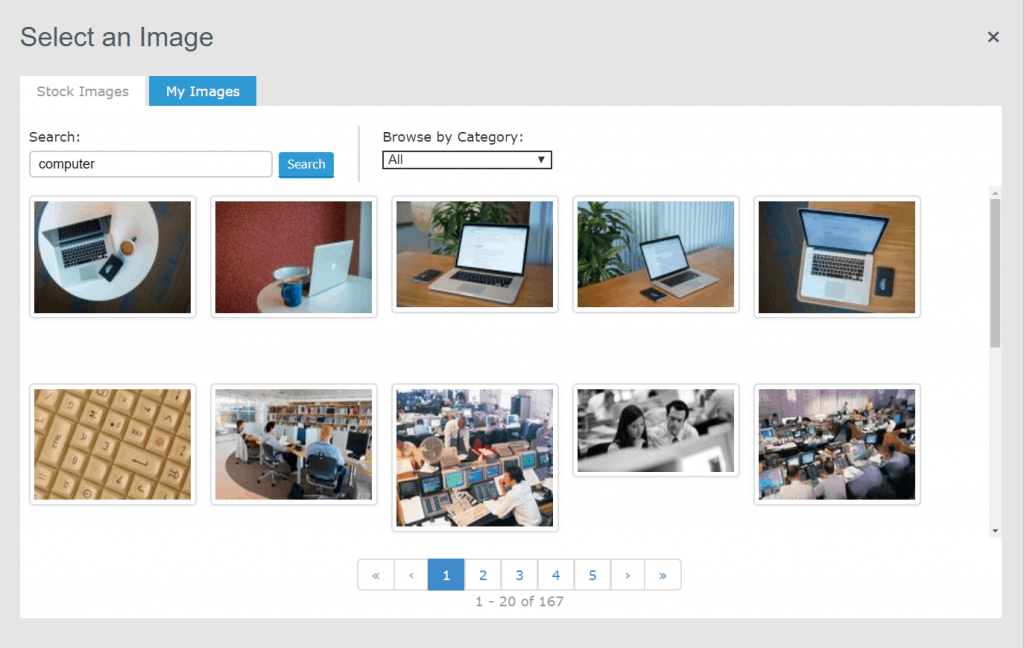
If you drop an image block into an email in the editor, you have the option to either upload your own image, or pick from AWeber’s image gallery.
There are over 6,500 free stock images in the gallery, which you can search by keyword, or browse by category. It will save you a lot of time if you regularly need to find photos to add to emails.
The Basics, But Not Much More
Currently, AWeber has two sets of reports: the classic old version, and a new re-designed version.
The old reports have a large variety of reports you can run, but most of them aren’t very useful. It seems that AWeber has recognized this, and is focusing on just the essentials for the new reporting interface.
However, there are a few, like the ones that focus on unsubscribes, that are useful and not yet in the new reports.
For now, you may have to toggle between the two interfaces.
A Clean, Intuitive New Dashboard
Eventually, the new reports will be your only option, so I’ll focus on them.
The dashboard and analytics AWeber gives you are attractive and easy to use. It offers you five main reports, which have both a graph and a table:
Opens over time
Clicks over time
Sales over time (you have to install sales tracking code)
New subscribers (just for current list)
Subscriber totals (just for current list)
Standard CSV Report Exports
If you’d like to export the data, your only option is through a CSV. There’s a handy button for it at the bottom of each individual report.
There aren’t any customization options. You simply get whatever data is in the table on that report page:
No Real Optimization Features
Some email marketing tools give you reports that provide insight into sending better emails — most commonly by helping you find the best time to send emails.
While it might be possible to do that in a messy way through the basic split-testing data you can access, the reports that AWeber provides aren’t going to help.
If you’d like more detail on the reports with extra screenshots, you can read more about my full experience.
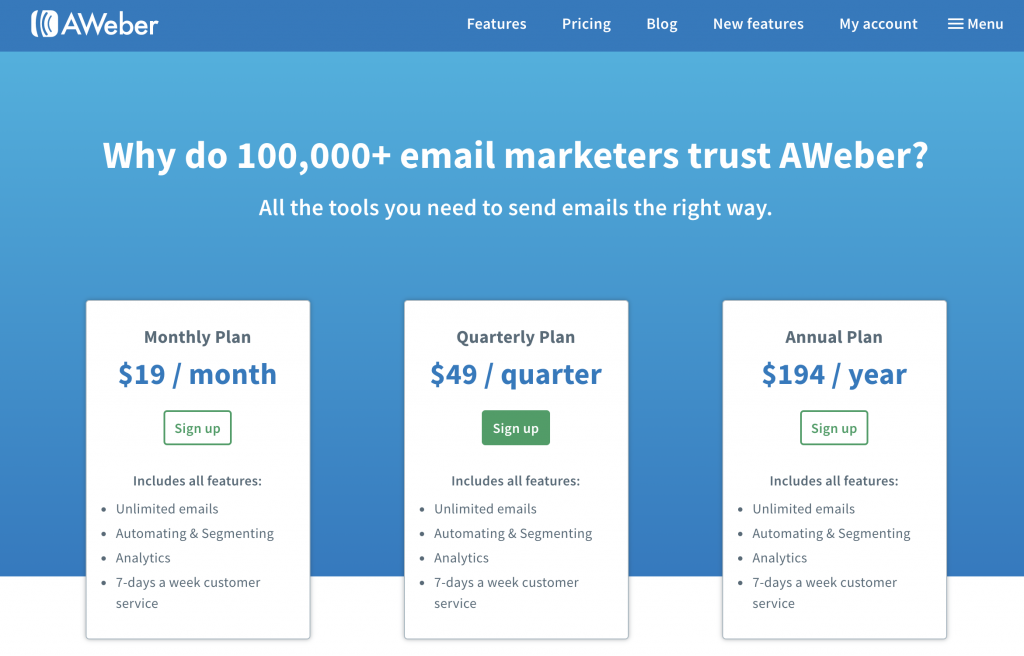
All AWeber plans come with a 30-day unrestricted free trial. And while AWeber is a bit more expensive than other email marketing tools, you get the full set of features on any paid plan.
Considering what you get, I think the prices are reasonable. The pricing is mainly focused on smaller lists (for small businesses), but can scale up as much as needed; you’ll just have to get a custom quote if you have higher needs.
Plans can be paid for by:
Credit card (Visa, Mastercard, American Express, and Discover)
Debit cards (only with Visa or MasterCard logo)
Checks
Money orders
You can also get a discount by paying on a quarterly or annual basis instead of monthly.
Cancellations & Refunds
Cancelling your account is fairly painless.
There’s a clear “close my account” button in your account’s billing options, as you might expect. That will lead you through a series of pop-ups and pages to close your account.
The only time you might need to contact support is if you’d like to try to get a refund. For example, if you paid for 12 months in advance, and want to cancel after one month, it makes sense to try to get a refund.
There’s no AWeber refund policy, so you’ll need to contact support to ask for one. Refund requests are evaluated individually, but as we’ve already seen, AWeber’s support is about as good as it gets, so I wouldn’t be too worried about it.
If you’d like a walkthrough of the cancellation process, click here to see a step-by-step guide to canceling your AWeber account.